Using vaults
What are vaults?
A vault is a special folder that you can share with other users and, if you're using two-factor authentication, protect with an extra layer of security. Your (login) credentials are always stored in a vault. After logging into your account, you’ll need to create a vault before you can add any data. Vaults can be created, unlocked, and encrypted. In the web application, you can rename, share, and delete vaults.
Creating a vault
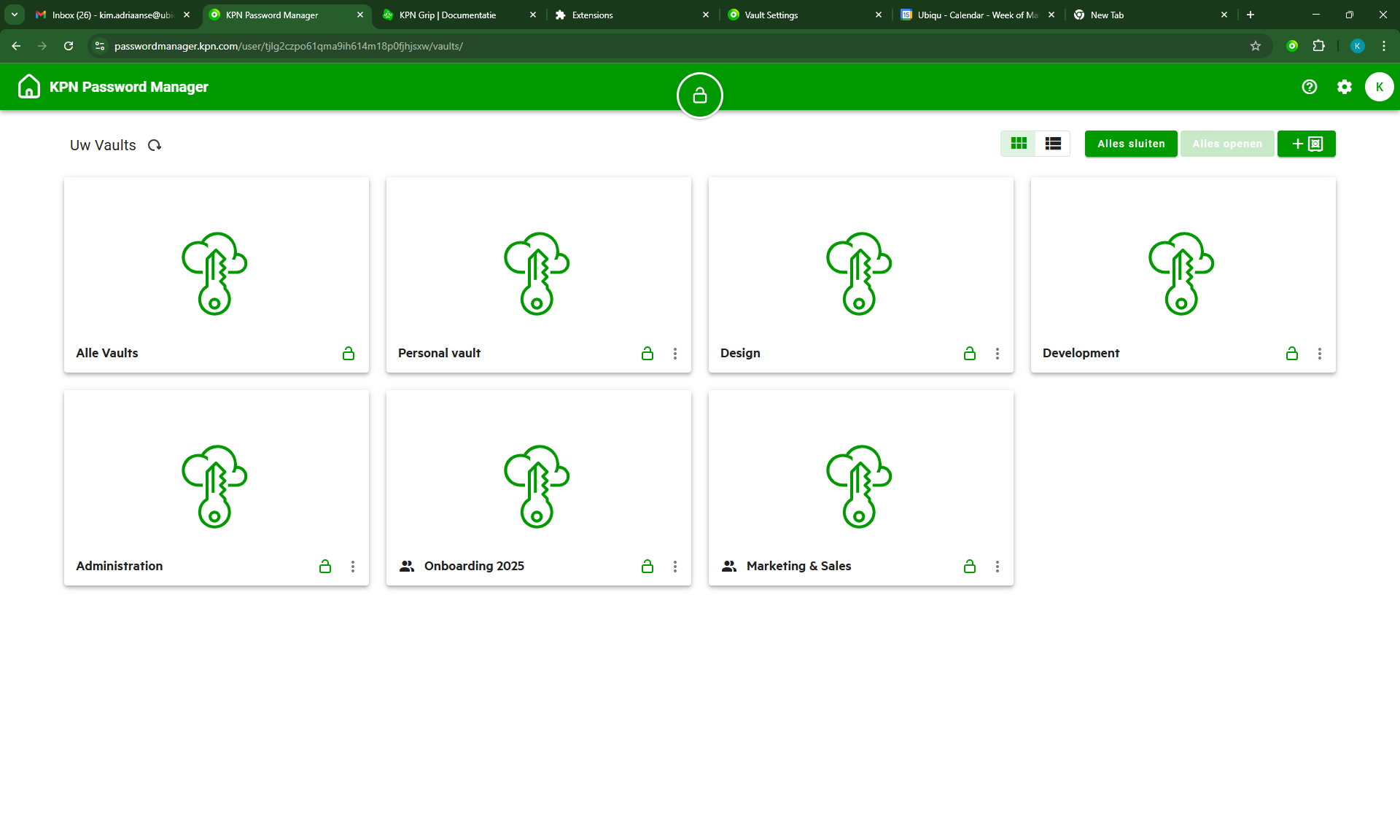
When you log in to the KPN Password Manager web application, you’ll see an overview of your vaults. To create a vault, click the button in the top right corner of the vault overview. A window will open asking you to name the new vault. This name must be unique and cannot start or end with a space.
Unlocking and encrypting vaults
You can unlock and encrypt vaults individually or all at once. A vault can only be viewed when it is unlocked. This feature is especially valuable when using two-factor authentication. In that case, unlocking a vault is only possible after successful authentication.
To access an unlocked vault, simply click on it. You’ll be taken to the vault’s main page.
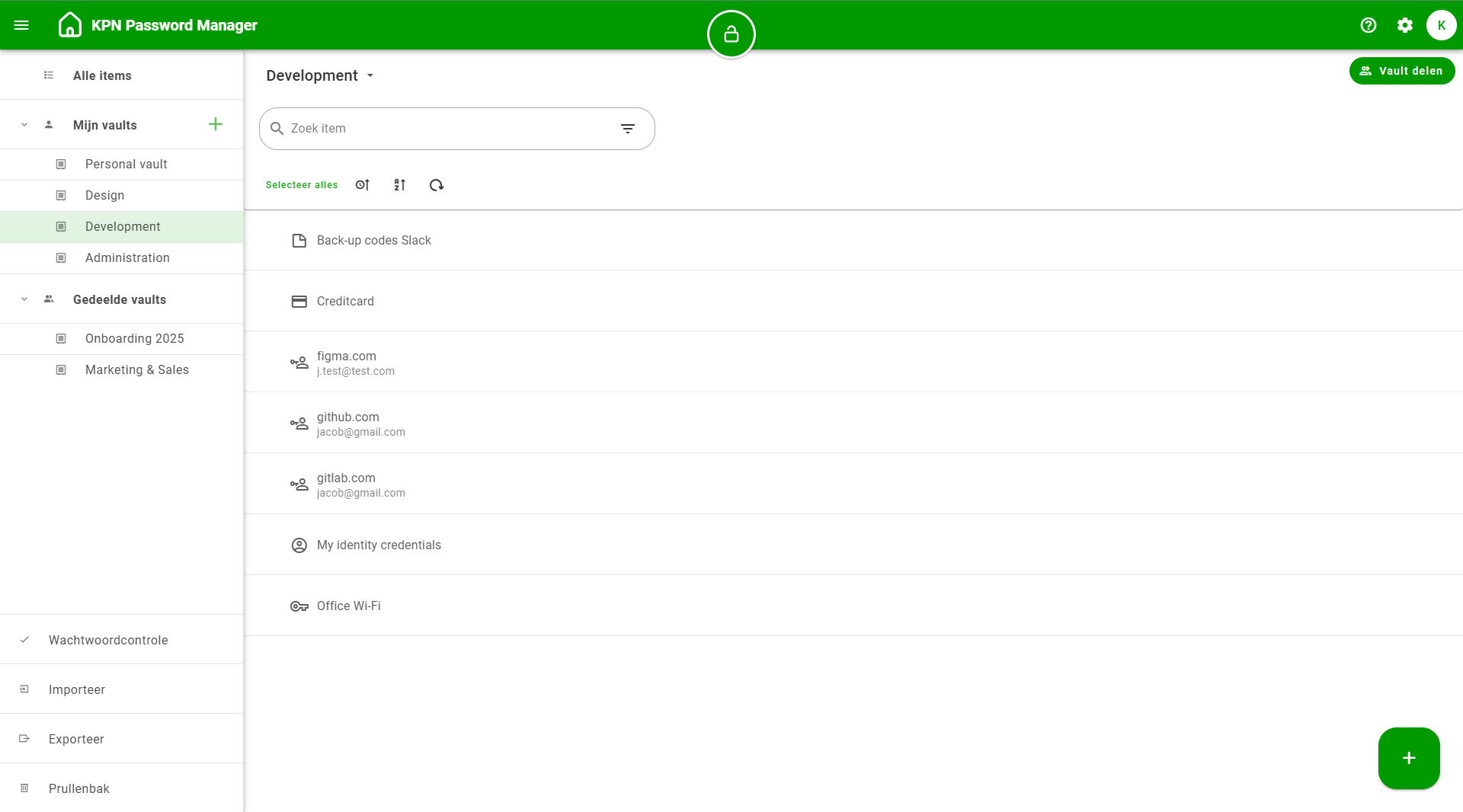
On the left side of the page, you’ll find a large navigation menu with the following sections:
- ‘All items’: View a list of all items from unlocked vaults (folders are not shown).
- ‘My vaults’: Vaults (and any associated folders) you created that are not shared with other users.
- ‘Shared vaults’: Vaults (and any associated folders) shared with you or by you with other users.
- Other functions: Password Check, Import, Export, Trash.
The content displayed on the page changes based on the selected section in the side menu. If you’re in a vault or folder, you’ll see a list of items and/or folders with options to search and filter. Click on an item or folder to view its details.
Renaming a vault
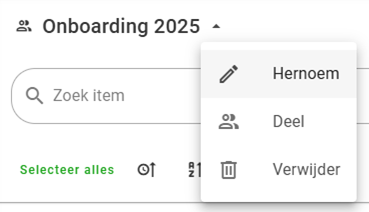
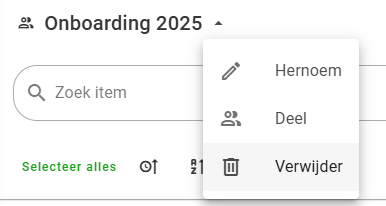
You can only rename a vault in the web application. Click on the vault you want to rename, and then click the small arrow next to its name at the top. Select Rename from the dropdown. A window will open allowing you to edit the vault’s name.
Sharing a vault
The KPN Password Manager allows you to securely share data with other users. Shared data is encrypted and stored on the Password Manager Server. The key to unlock this data can be securely shared with others. Vault sharing is only possible in the web application and only if you have the Administrator role for that vault.
To share a vault, select it from the left-hand menu. Then click Share Vault in the top right corner.

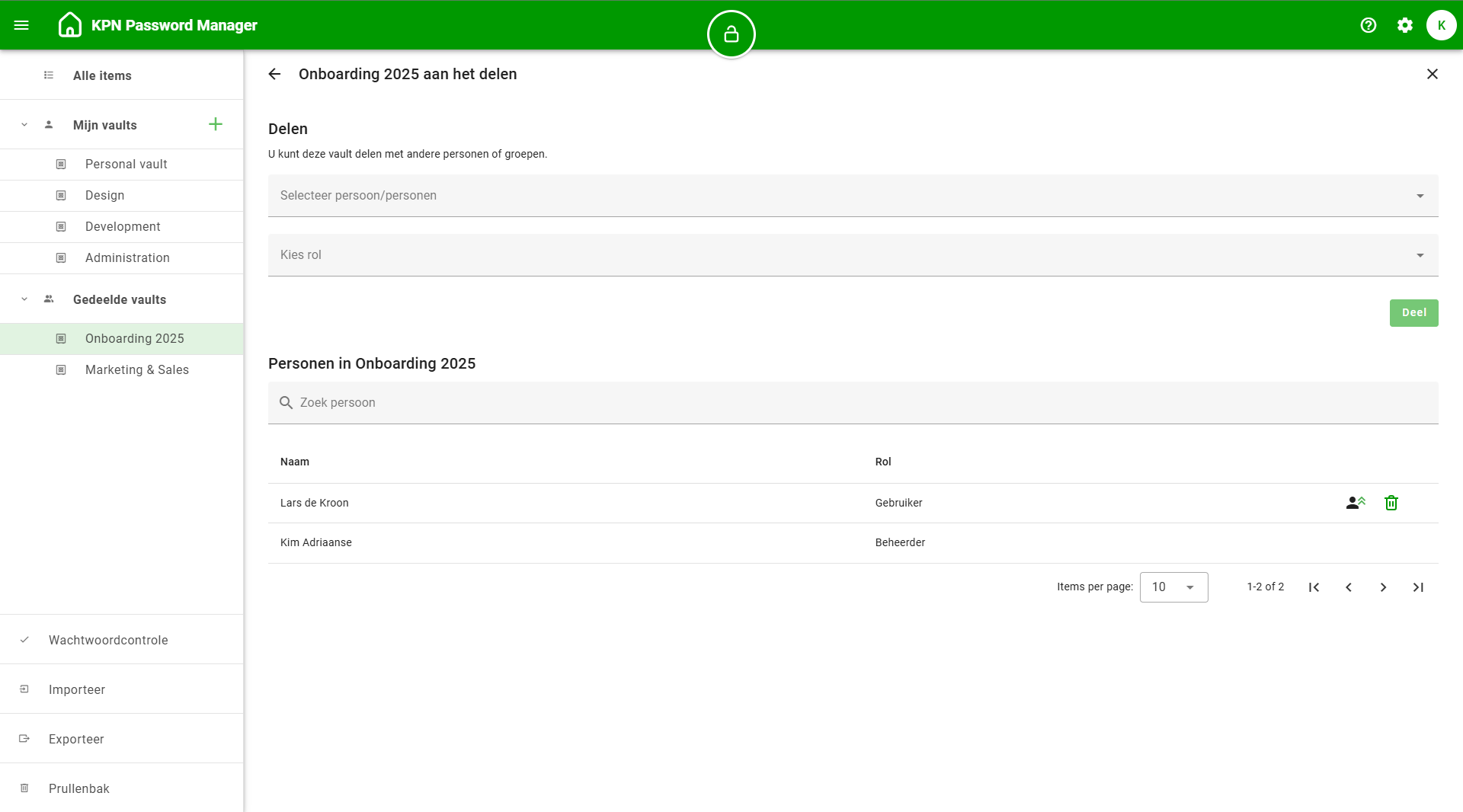
A new window will appear. Select one or more users (only users from your organization can be selected) and assign them a role. The permissions for each role are:
- User: Has nearly full control, except the ability to rename or delete the vault. Can unlock vaults, create, edit, and delete items.
- Administrator: Has full control, including renaming, sharing, and deleting the vault, unlocking vaults, and creating, editing, and deleting items.
Click Share to complete the process. Users with two-factor authentication will be required to authenticate this action. At the bottom, you'll see a list of users the vault is shared with, where you can modify their roles or remove them from the vault.
Deleting a vault
To delete a vault, select it from the left-hand menu. Then click the small arrow next to the vault name at the top and choose Delete. A confirmation window will appear asking if you’re sure. Users with two-factor authentication will need to authenticate this action. Deleted vaults can be restored from the Trash section. More information on recovering items or vaults can be found in Recovering items or vaults.
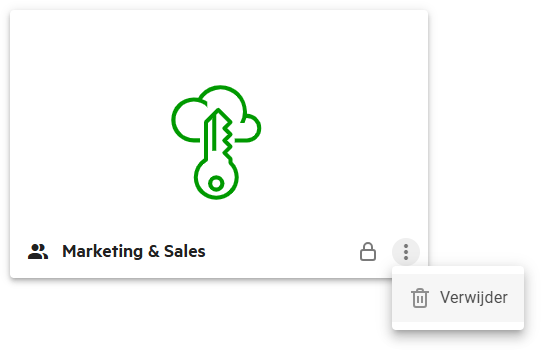
You can also delete a vault directly from the overview where all your vaults are listed.