Using items
What are items?
Login credentials and other sensitive information you want to store in your password vault are saved as items. Items can be created, edited, moved, and deleted. There are several available item types: Login (including TOTP), Password, Identity, Credit Card, and General. Each item type offers different input fields. At this time, items cannot be shared individually with other users. If you want to share a single item, you can create a new vault that contains only that item and share the vault instead.
Creating an item
Item types
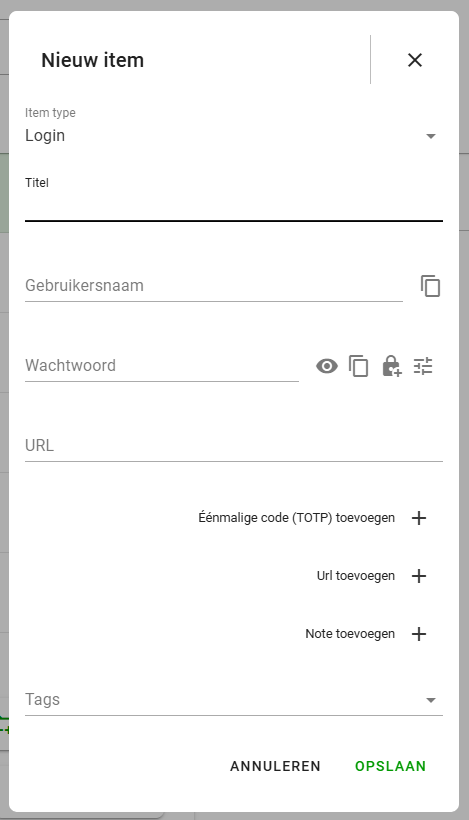
To create a new item, click the large plus button in the bottom-right corner of your item list. Two buttons will appear: one to create an item and one to create a folder. Click the first button. A window will open, allowing you to select an item type at the top. By default, Login is selected. Based on the type you choose, different input fields will be shown. For each item type, you can add URLs, notes, or tags. Some fields are required.
Available item types:
- Login: For storing login credentials
- Password: For storing a password without a username
- Identity: For storing personal identity details
- Credit card: For storing credit card information
- General: For storing general text data securely
Generating passwords
When creating a new item, you can generate secure passwords automatically. Since the passwords are saved directly in your vault, you don’t need to memorize them. To generate a password, click the lock icon to the right of the password field. To customize the password settings, click the icon furthest to the right. You can adjust the number and variety of characters used. The more complex your password, the stronger it will be.
TOTP
In a Login item, you can add a TOTP (Time-based One-Time Password). A TOTP is a temporary password that changes every 30 seconds and is used as an additional security layer alongside your main password—for example, during two-factor authentication (2FA). When adding a TOTP, you’ll be prompted to enter a security key. This code is provided by the website where you’re enabling TOTP.
Tags
To help organize your vault and make filtering easier, you can add tags to your items. This can be done at the bottom of the item creation window or while editing an existing item. Use the search bar at the top of your item list to filter by tag. For more details, see the section on Search and Filter.
Editing an item
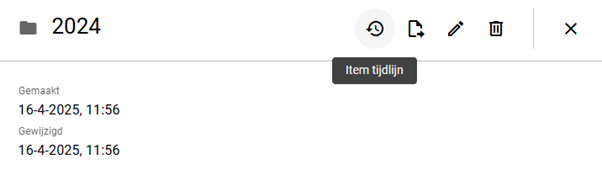
Select the item from the list that you want to edit. The item’s details will appear on the right side of the screen. Click the Edit button at the top to enter editing mode. You can now change any field or add fields that were previously left empty. After making changes, click Save at the bottom to store your changes, or Cancel to discard them.

Deleting an item
To delete an item, click on it in the list to open its details on the right. Then click the trash can icon at the top. A confirmation window will appear. Once confirmed, the item will be deleted. In the web app, deleted items can be recovered from the Trash. For more details, see the section on Restoring deleted items or vaults.

Moving an item
You can move an item to a different vault and/or folder. Select the item to see its details, then click the Move icon at the top. A window will appear allowing you to choose a vault and optionally a folder. Note that you can only move items to unlocked vaults. After clicking Move, you’ll be redirected to the new location of the item.

Item version history
At the top of the item details page, you’ll see a clock icon. Click this to view the item’s version history. A window will open showing different versions of the item. You can select a version to compare it with the current state. You can also restore a previous version if needed.