Using folders
What are folders?
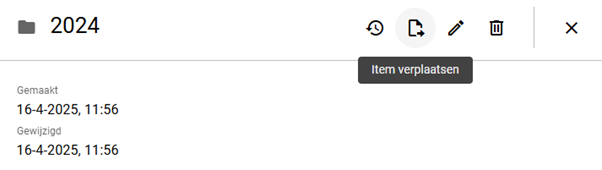
To add structure within a vault, you can use folders. Folders can be created, renamed, moved, and deleted. It’s also possible to create subfolders (folders within folders). If you click once on a folder, a detail page will appear on the right side. To navigate into the folder, either double-click it or click the arrow once. Inside the folder, you can create new items or folders.
Creating a folder
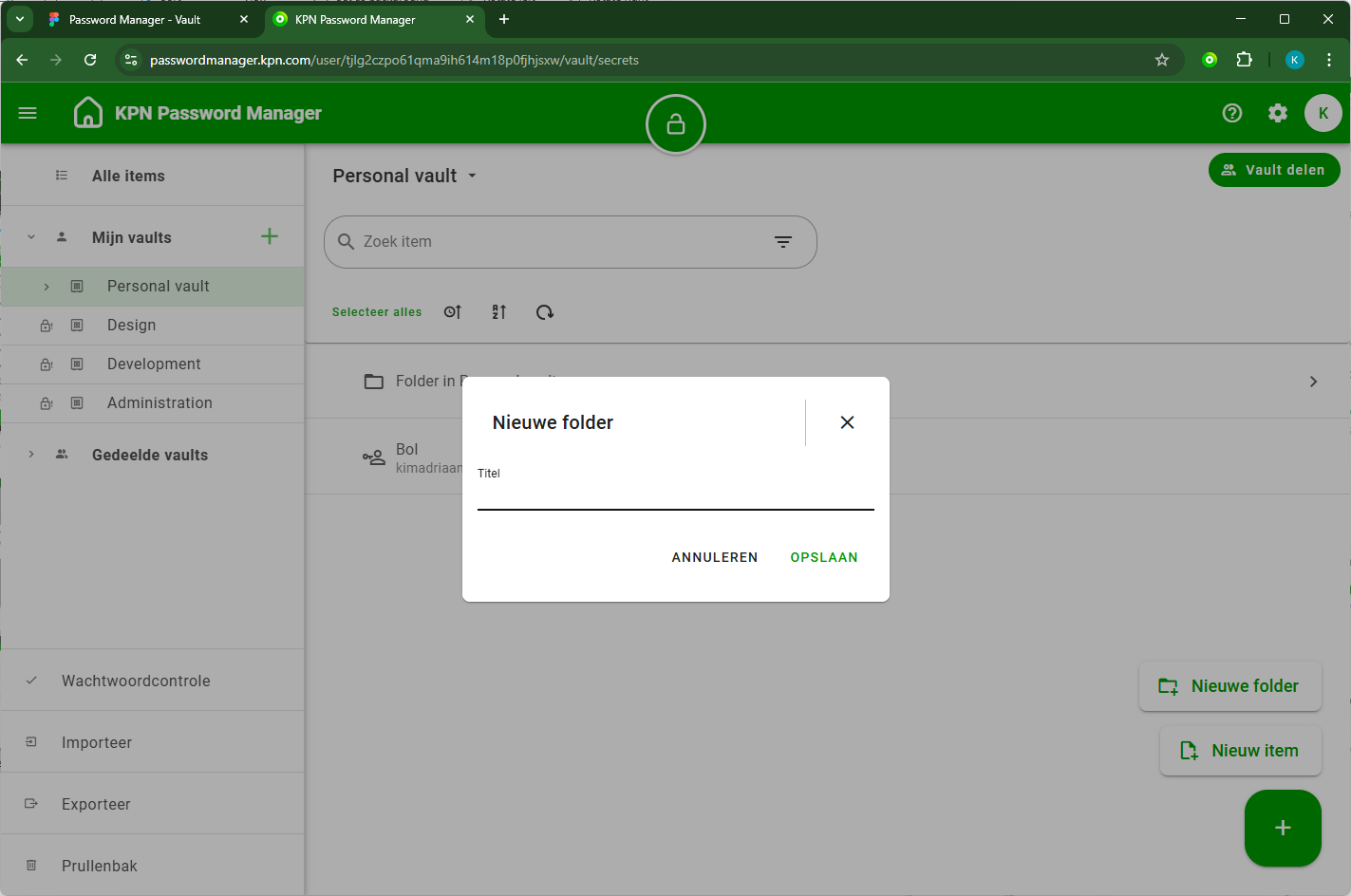
To create a folder, click the large plus button in the bottom-right corner. Two options will appear: one to create an item and one to create a folder. Click the second button and give your new folder a name. If you are in All Items (in the web application), you’ll also need to select a specific vault where the folder should be placed.
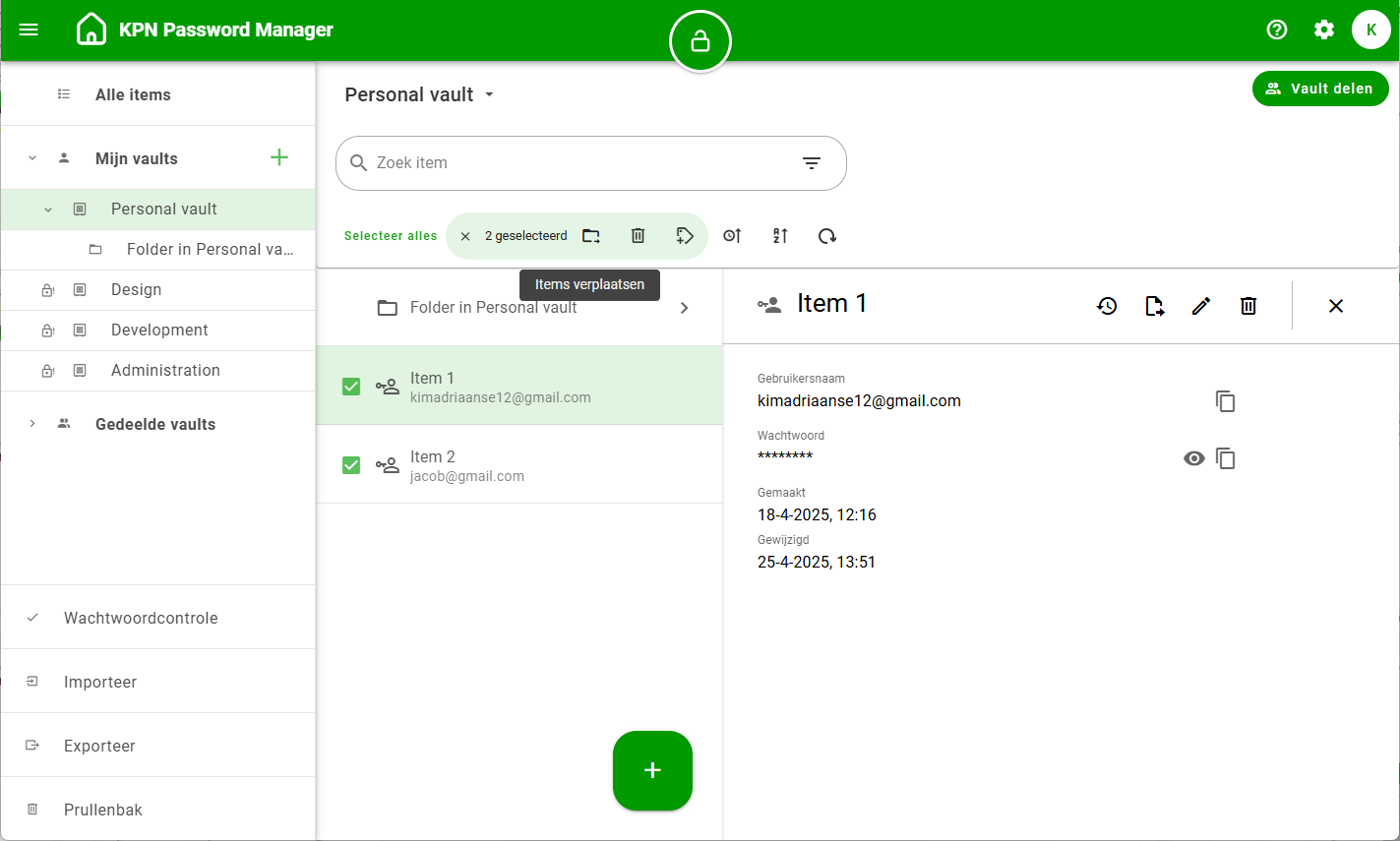
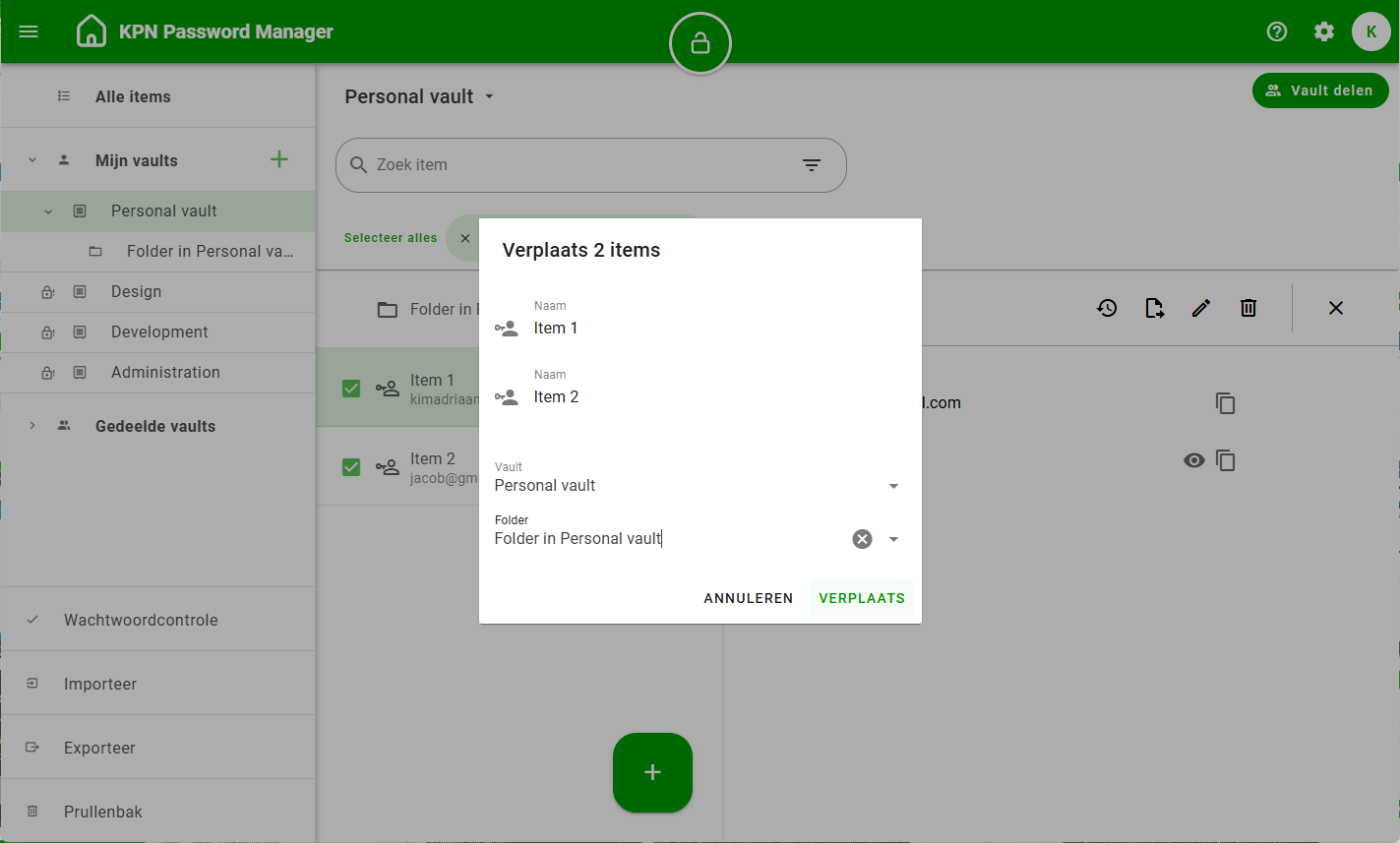
Already have items you’d like to move to your new folder? Now that the folder has been created, select one or more items and click the ‘Move’ icon. In the pop-up window, choose the desired folder and confirm by clicking MOVE. Once the items have been moved, KPN Password Manager will take you to the folder where the items were placed. Note: Moving items is only possible in the web application.
Renaming a folder
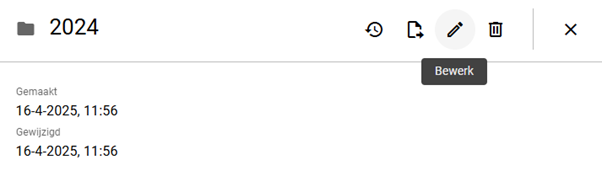
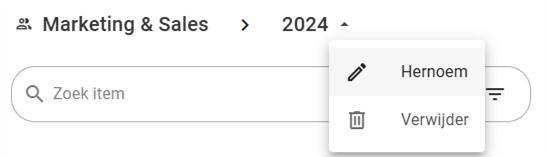
There are several ways to rename a folder. If you click once on the folder in the list, the folder’s details will appear on the right. Click the edit icon in the top-right corner of the detail view to change the folder name. Alternatively, in the web application, you can rename a folder the same way you rename a vault. When you're inside the folder, you’ll see a small arrow next to the folder name at the top. Click the arrow and then click Rename. A window will open allowing you to edit the folder name.
Deleting a folder
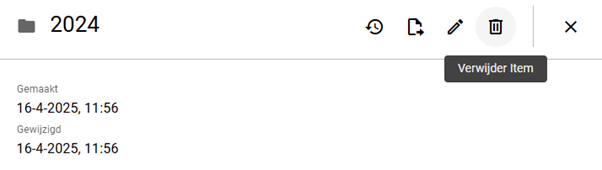
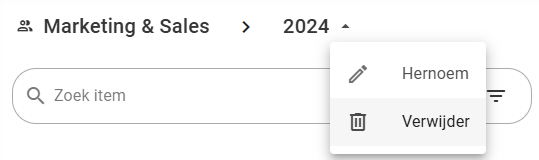
Folders can also be deleted in multiple ways. Click once on the folder in the list to open its details on the right. Then click the trash can icon at the top. A confirmation window will ask if you’re sure you want to delete it. The folder and any items or subfolders it contains will be deleted. Items from the deleted folder can still be recovered from the Trash in the web application.
Moving a folder
In the web application, it is also possible to move a folder—including all items and subfolders inside it—to another vault and/or folder. To do this, click once on the folder in the list to open its details. Then click the ‘Move’ icon at the top. A window will appear where you can select a vault and optionally a target folder. Click Move, and you’ll be automatically redirected to the new location of the folder.