Autofill Passwords
To make the most of the KPN Password Manager browser extension, there is a feature that allows you to easily fill in passwords on websites. The following paragraphs explain how to use this functionality.
The right settings
First, go to your Settings in the extension by clicking your initial in the top-right corner and then selecting Settings. Under the heading Web page interaction, you’ll see the option Show vault button in login forms. Make sure this option is turned ON. This means that when you're in a login form on a website, a small window will appear allowing you to select the correct item.
It’s also useful to enable notifications if you want the login process to be as smooth as possible. You can toggle the following notifications on or off:
Notify me when there is no active user
You receive a notification when you log in to a website while you are not logged in to your browser extension. You can log in via the notification.
Notify me when no vaults are opened
You receive a notification when you log in to a website while none of your vaults are unlocked. The notification allows you to unlock your vault(s).
Notify me about new savable items
You receive a notification when you log in to a website using login details that you have not yet saved as an item in your KPN Password Manager. The notification will ask if you want to create and save the item.
Notify me about existing items
You receive a notification when you log in to a website using login details that you have already saved in an item, but for example with a different password or without an URL. The notification will ask if you want to update the item.
Using the autofill window
When you're logged into your browser extension and your vault(s) are unlocked, you can use the autofill window in login forms on web pages.
- Click on a field in a login form, such as the "Username" field.
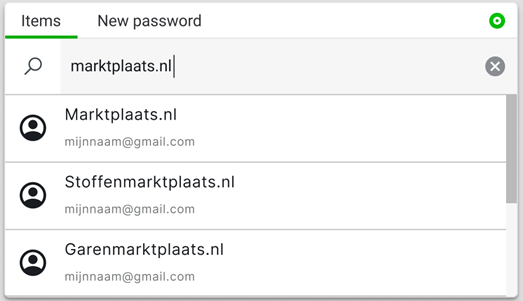
- The autofill window opens, including a search bar that is automatically populated with the URL of the current website.
- Don't see any items? You likely haven’t saved an item with this website’s URL. You can try searching by username or item title.
- See the item you want to use? Click on it. Username and password will be filled in automatically in the correct fields.
- Log in to the website.
- If you didn’t already have an item saved for these login credentials, a notification will appear in the top-right corner of your screen asking if you want to save these credentials in a new item.
- If you did already have an item for these credentials, but it didn’t yet contain a URL, a similar notification will appear asking if you want to add the current page’s URL to the existing item. This helps the correct item appear more easily in the autofill window in the future
Generating a new password
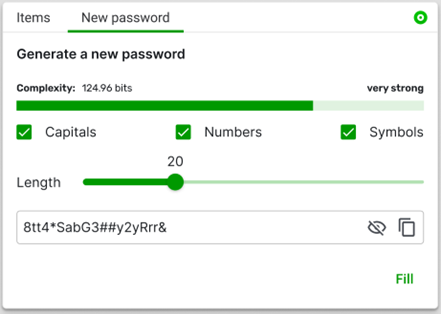
When you're on a web page where you want to create a new password, you can also generate a secure password through the autofill window. Click on the password field, and a window will open with several options to generate a strong password. Click Fill and the password will be inserted into the password field. Once you’ve entered your login credentials and logged in, a notification will appear in the top-right corner asking if you'd like to save these new login credentials. Be sure to click Save, so you don’t lose the generated password.