
First use of the browser extension
Installing the browser extension
To fully benefit from the KPN Password Manager, it’s recommended to also install the browser extension. This allows you to quickly log in to websites using your stored (login) credentials. Instructions for doing this can be found under Autofill Passwords.
The extension is available for Google Chrome, Mozilla Firefox, and Microsoft Edge, and can be downloaded from the respective browser stores. Click on your browser's logo to go to its extension store.
 |  |  |
|---|
Once installed, the extension will appear in the top-right corner of your browser. There, you’ll either see the KPN Grip icon directly, or a puzzle piece icon that you can click to access the extension. The icon appears grey when you are not logged in and turns green once you are logged in.
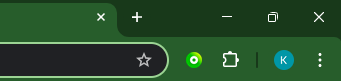 | 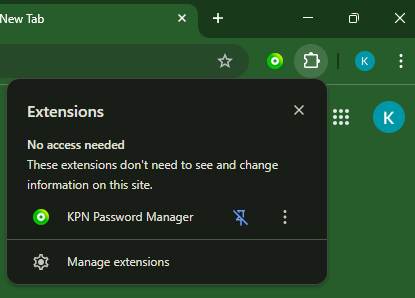 |
|---|
If you're not yet logged in or wish to log in with a different account, you can open the extension and click ‘Log In’. You will then be redirected to the login page, where you can sign in using your (Grip) credentials and complete any necessary authentication.
Login
The exact login procedure depends on how your organization has set things up. Your organization should have clearly communicated which login credentials to use and whether two-factor authentication is required. Authentication is handled through the KPN Grip platform. Users who use two-factor authentication must link the mobile ‘Authenticate’ app to their account.