
Autofill Passwords
In the mobile app, you can also enable the Autofill feature. This allows you to quickly and easily select the correct item from your KPN Password Manager when you're on a login screen in a mobile browser or app.
Go to the Settings in the app. You’ll see a setting called Autofill — make sure this is enabled. You’ll also need to enable the autofill functionality in your phone’s system settings. A step-by-step guide will be provided in the app to help you with this.
Once the feature is enabled, you're logged into your KPN Password Manager app, and your vault(s) are unlocked, you’ll be able to use the Autofill window within login forms. The steps below explain how it works:
- Tap on a login field (e.g., “Username”) in a mobile browser or app where you want to log in.
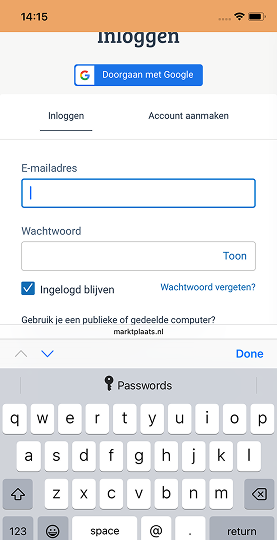
- If you haven’t previously filled in credentials on this page via the KPN Password Manager app, the correct item won’t appear automatically. Instead, you'll see “Passwords” appear above your keyboard (screenshot 1). Tap this.
- Select the KPN Password Manager app. Depending on your iOS settings, your identity will be verified using Face ID, Touch ID, or a passcode.
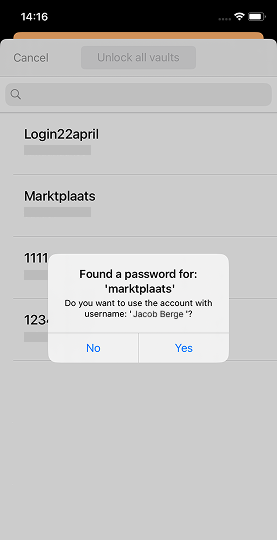
- The app will search for a matching item based on the name of the webpage or app. You’ll be asked whether you want to use the suggested item (screenshot 2). Tap Yes to fill it in, or No to search for a different item.
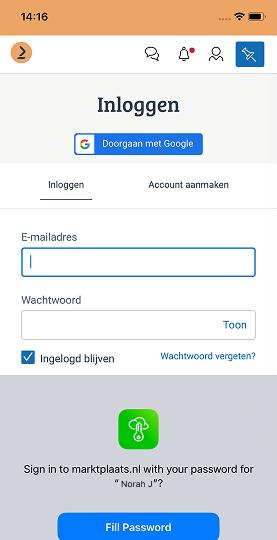
- Once you’ve selected an item for autofill, it will be automatically suggested the next time you visit that same page (screenshot 3).
 |  |  |
|---|