
Autofill Passwords
In the mobile app, you can enable the Autofill feature. This means that when you're on a login form in a mobile browser or app, you can quickly and easily select the correct item from your KPN Password Manager.
Go to Settings in the app. You’ll see a setting called Autofill — make sure this is enabled. You’ll also need to activate autofill in your phone’s system settings. On the Android app, you will be redirected to these settings automatically when you attempt to enable autofill.
Once the feature is enabled, you're logged into the KPN Password Manager app, and your vault(s) are unlocked, you can use the autofill window within login forms. Here’s how it works:
- Tap a login field in a mobile browser or app where you want to log in — for example, the “Username” field.
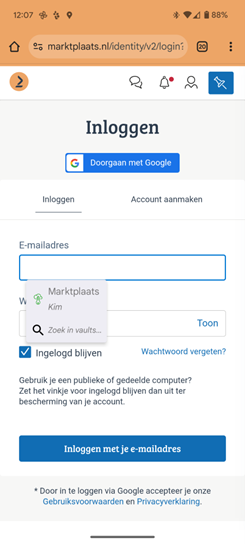
- A small popup will appear with the text “Search in vaults…” and possibly a suggested item (screenshot 1). Tap the item if it’s the one you're looking for — it will be automatically filled into the appropriate fields. If the suggested item isn’t correct or no item is shown, tap “Search in vaults”.
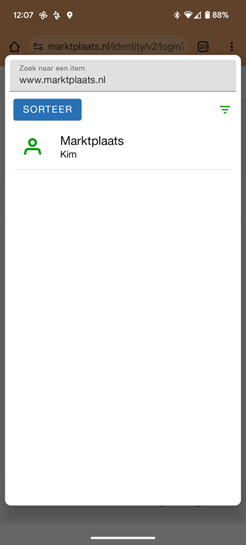
- A new window will open with a search bar at the top, automatically filled with the URL of the website you're on ( screenshot 2).
- Don’t see any items? It likely means no item is saved with that website's URL. You can try searching by username or item title.
- Found the item you want to use? Tap it — your username and password will be filled in automatically.
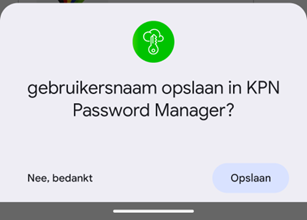
- Log in to the website. If you didn’t previously have an item saved for these credentials, a notification will appear at the bottom of your screen asking whether you want to save these login details in a new item (screenshot 3). If you tap Save, a screen will open allowing you to create the new item.
 |  |  |
|---|